The dashboard on mobile, invite-based teams, and team context
This is a big release. The headline is that the dashboard now works properly on a phone, so producing a document no longer means getting back to a desk. Alongside it, teams are set up in a new way, each team can give Maslo its own operational context, and you can now edit and tidy up your sites and walk types. Here is what changed and what to do about it.
The dashboard, now on mobile
The dashboard is live, and the change that matters is that it works on a phone. Until now, producing a document meant getting back to a desk. For teams who are out on site all day, that was the wrong shape.
You will find it in two places: the main navigation, or the green analysis button at the bottom of the screen.
How it works
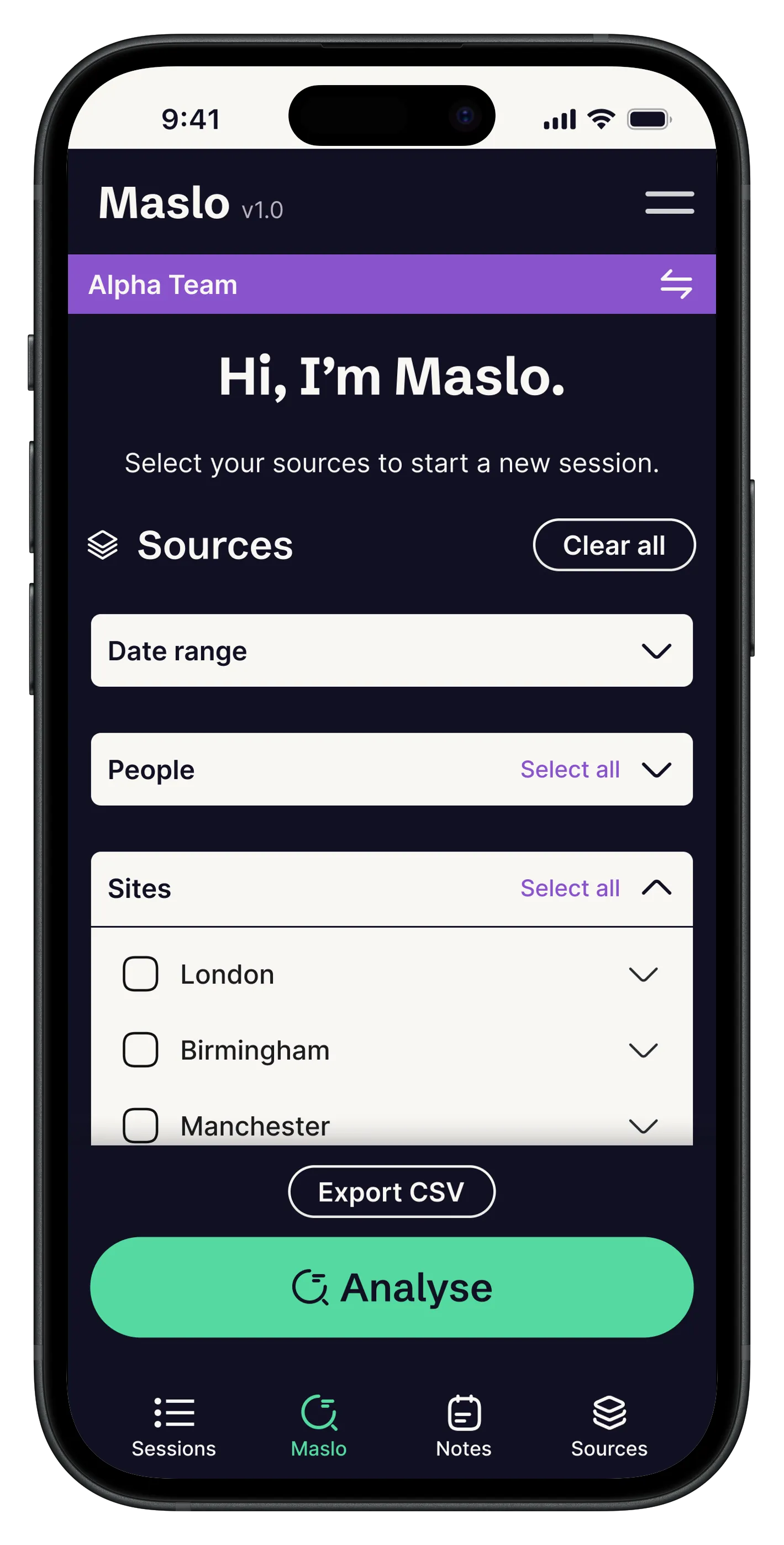
- Open Maslo. From the main menu, or tap the green analysis button at the bottom of the screen.
- Pick your sources. Choose the walks or sites you want Maslo to look at. You can narrow this by date range, or by the people who carried the walks out. This is the most important step, because it decides what Maslo can see.
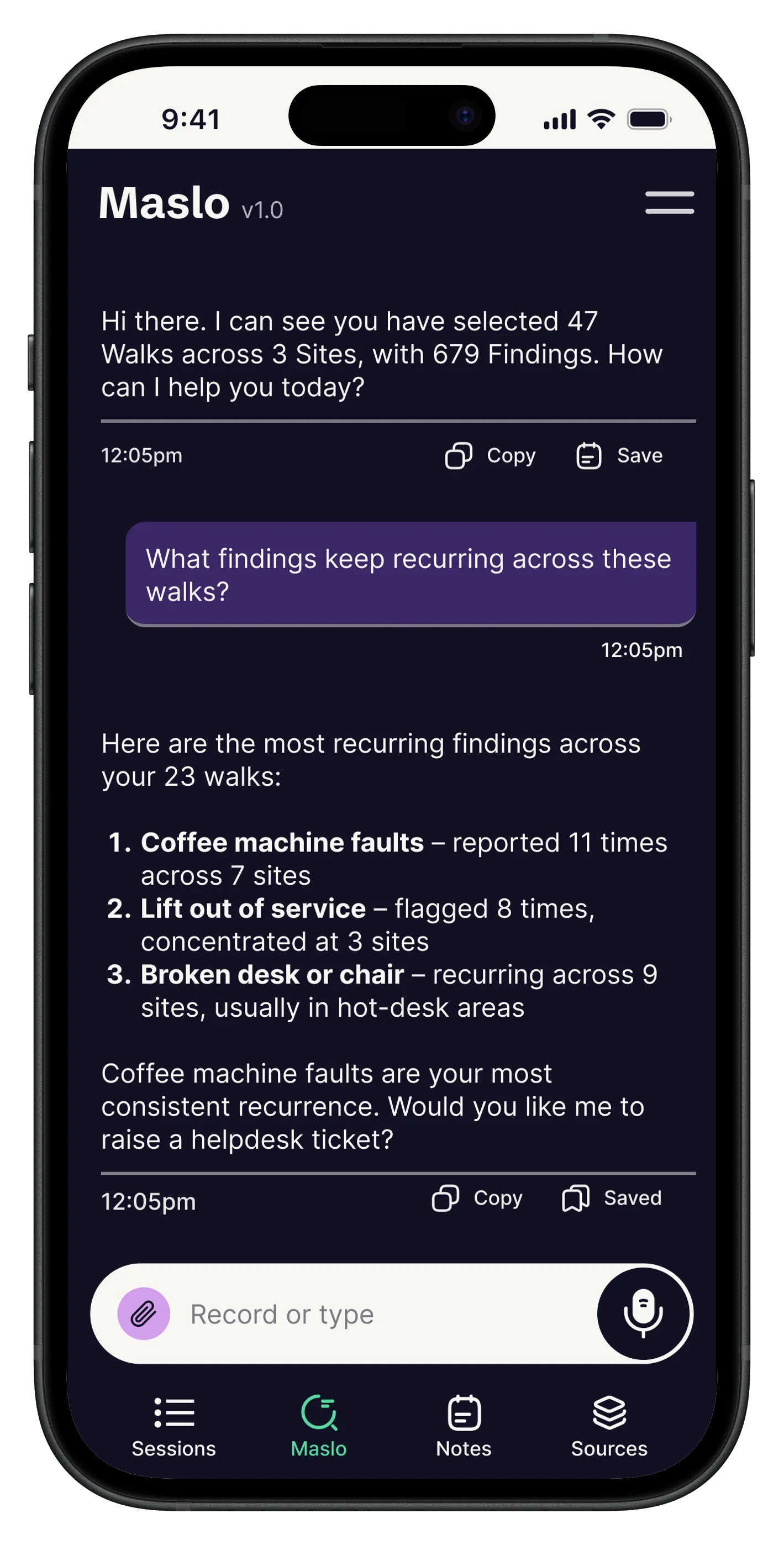
- Ask your questions. Query the data in plain language. What is still outstanding, what keeps recurring, what needs someone on it tomorrow.
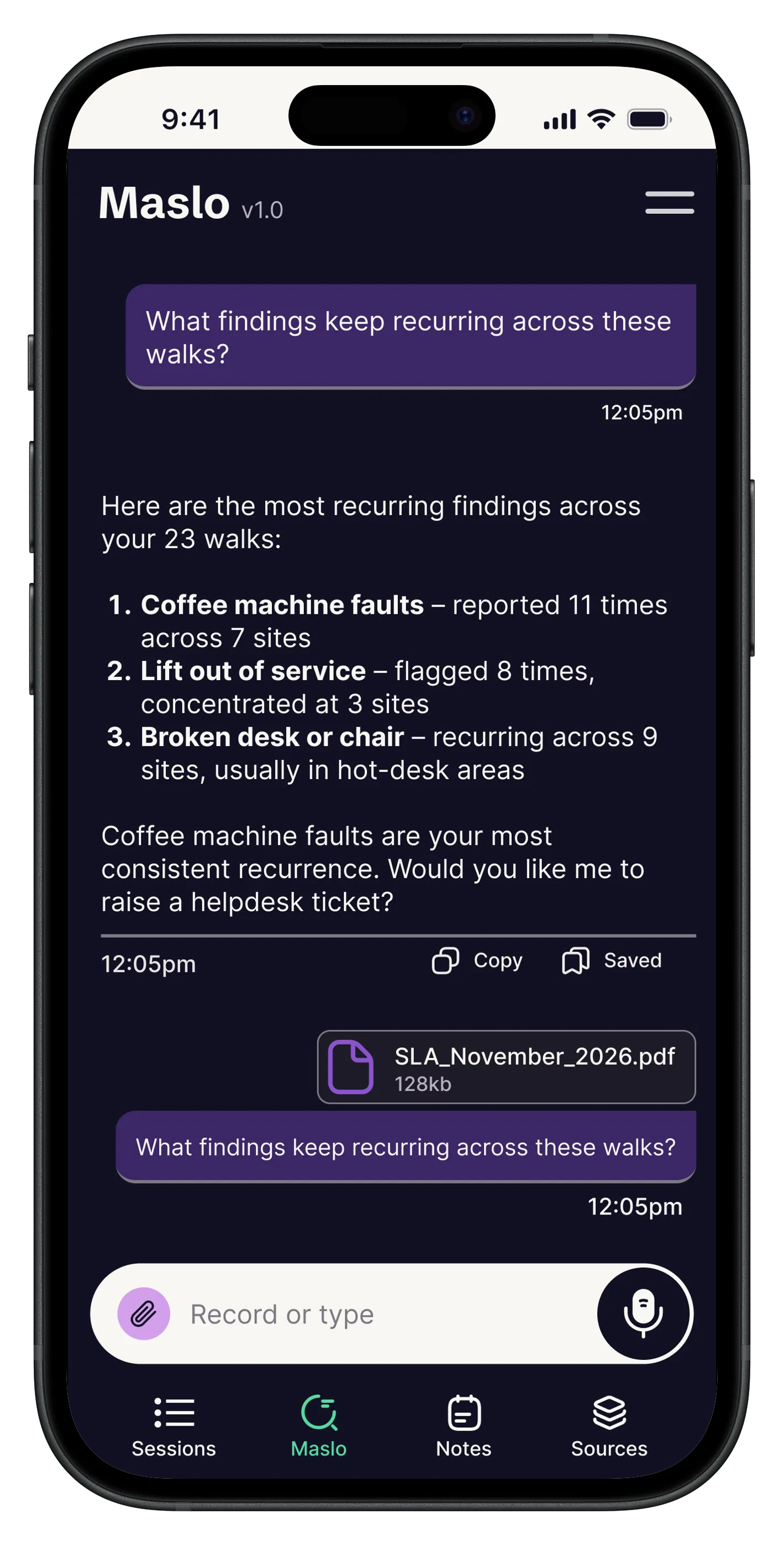
- Add context if you need to. Upload a document into the conversation for Maslo to work against, such as a price list, a specification or a schedule. Maslo reads it alongside the findings.
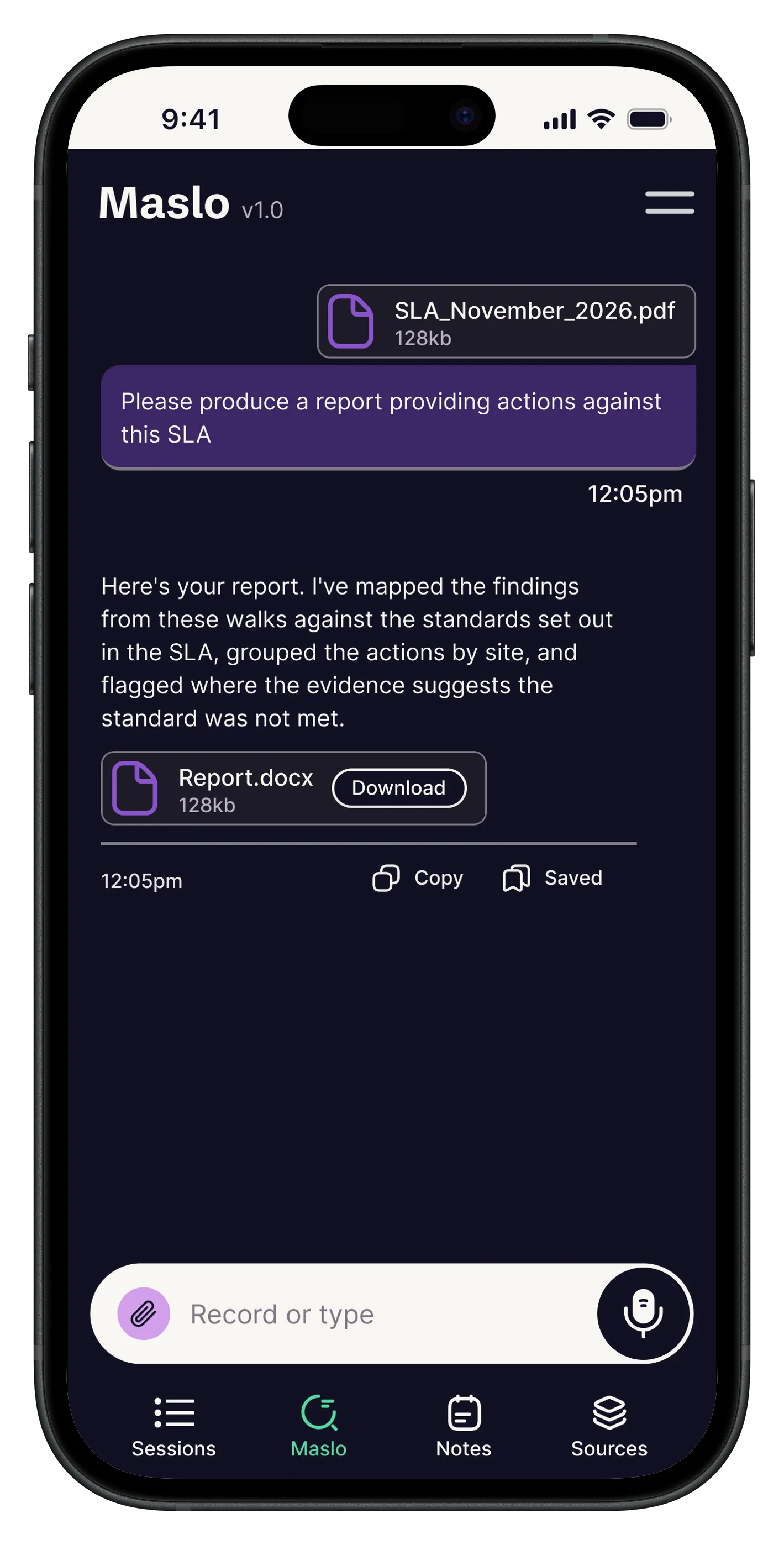
- Ask for the document. Tell Maslo what you need. Download it as a Word file and share it however you normally would.
The output is a Word document. Maslo supports simple formatting: plain text, headings, tables, bold and italic.
Getting the most from it
- Be deliberate about your sources. Maslo only knows what you have selected. A tight selection of the right walks gives a sharper answer than everything from the last month. If an answer looks thin, check your sources first.
- Say what the document is for. Tell Maslo who will read it and what you want them to do. A list of actions for a site team reads very differently from a summary for a client, and Maslo will write to the audience when you name it.
- Keep talking to it. The first version does not have to be the last. Ask for it shorter, grouped by site, or with the low priority items dropped. Refining in the conversation is quicker than editing the file afterwards.
- Do it before you leave. The point of mobile is that the write-up happens on site, while the day is fresh. The document then reaches the people who need it hours sooner.
One habit underpins all of this. Findings are the raw material. If operatives log what they see as they see it, with a photo and a clear description, Maslo has something solid to build from. If capture is patchy, the documents will be too.
Who has access. Owners and managers. Contributors do not have the dashboard or Maslo.
Teams are now set up by invite
When a team is created, the owner now receives an invite by email. Previously a team came with a registration code, and anyone holding that code could join, with owner-level access. Codes get forwarded, and they float around indefinitely. Invites put a stop to that.
The owner then invites their own people from team settings, one email address at a time, and chooses the role for each person as they go.
A few things worth knowing:
- Invites are single use. They cannot be passed around and reused.
- Because you set a role for each invite, you decide what access each person actually needs.
- The invite goes to a named address, but the person can sign up with a different email if they prefer.
- Existing teams that were set up with a code carry on exactly as before. Nothing breaks.
- When you create a team you can choose between an email invite and a registration code. The email invite is now the default, and it is the one to use unless you have a specific reason not to.
Who can do it. Team owners invite their own people.
Team context
Each team can now set its own operational context in team settings. This is a description of how the team actually works: its sites, its client, the standards it is contracted to, and the language it uses.
It changes everything Maslo produces. Maslo reads the context, and so does the analysis behind your findings. Answers and findings are then framed against your team’s real operating reality rather than a generic standard.
For example, a cleaning team can set out what they are contracted to deliver and what good looks like on their sites. Maslo then assesses and describes findings against that specification, not against a generic cleaning standard.
One thing to state plainly. Team context sits in team settings and is not part of onboarding. You have to set it deliberately, and nothing prompts you to do it. It is well worth doing.
Who sets it. Team owners.
Editing and deleting sites and walk types
You can now edit and delete sites and walk types. You can also change the site and walk type on a walk that has already been created.
This one is easy to miss, so here it is step by step:
- Go to team settings.
- Scroll down to the section that lists your sites and walk types.
- Click manage sites.
- The edit and delete controls are in that list.
It is a good moment to tidy up. Many teams have typos, duplicates and abandoned entries in their site lists from earlier setup. Now is a good time to go through and clear them out.
Who can do it. Owners only. Managers and contributors cannot edit or delete sites or walk types. This is deliberate. It stops one person removing a site that colleagues are still working against.
Smaller improvements
- Change the site and walk type on an existing walk.
- Maslo now honours a priority level when you state one in your request.
- Walk cards show the time as well as the date.
Fixes
- Findings can now be set to Completed priority. Previously only low, medium and high were selectable.
- PDF reports rendered incorrectly on some combinations of images and text. This is now fixed.
Roles and permissions
There are three roles. Owners and managers together are the team’s members, and members are the people who get the dashboard and Maslo. Contributors are the people out doing the walks.
| Role | Dashboard and Maslo | Manage sites and walk types | Set team context | Invite users | Walks and findings |
|---|---|---|---|---|---|
| Owner | Yes | Yes | Yes | Yes | Yes |
| Manager | Yes | No | No | No | Yes |
| Contributor | No | No | No | No | Yes |
The distinction that matters in practice: both owners and managers get the dashboard and Maslo, so you do not need to make someone an owner just to give them the analysis. The only real difference is that owners can edit and delete sites and walk types. If someone needs the full picture but should not be able to remove a site out from under a colleague, make them a manager.